FAQ on User Issues
Find answers to frequently asked questions about common application issues.
More FAQ sections:
Encryption using public keys and certificates
Why does Kleopatra say “No secret key” when decrypting?
This error appears when Kleopatra cannot find a matching secret key.
Common causes:
- The sender did not add your certificate as a recipient when encrypting.
- The sender used the wrong certificate by mistake.
- You created a new OpenPGP key pair without revoking the old one. Now two certificates share the same user ID, but only the new one contains a secret key.
What to do?
Ask the sender to encrypt the file again and select your current certificate under Encrypt for others in the file encryption dialog.
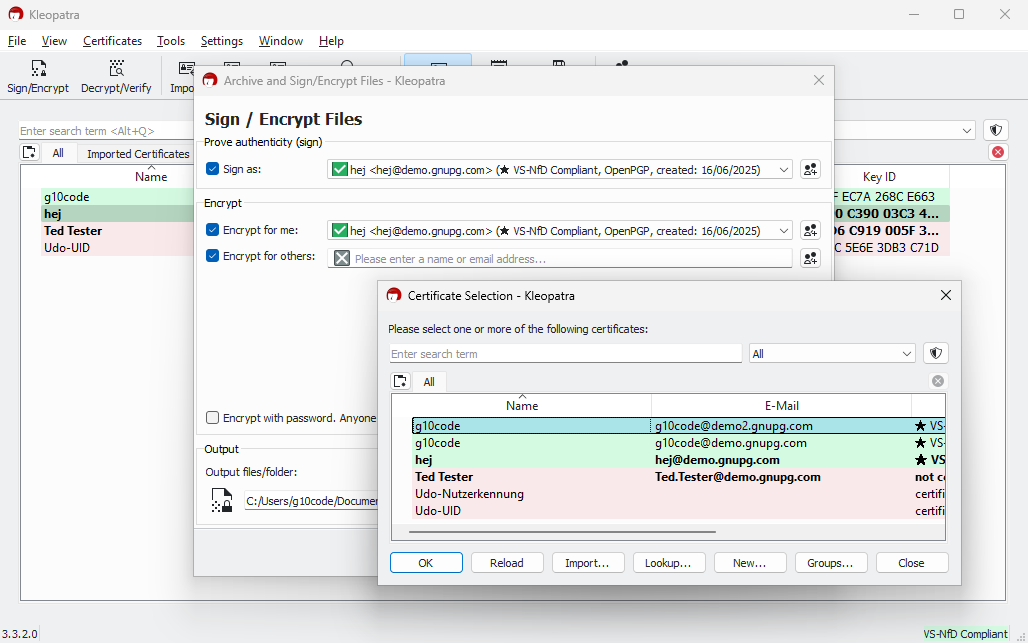
If you are unsure, send your current certificate again—ideally together with any older versions (expired or revoked) that share the same user ID.
Important: Decryption always depends on the certificate fingerprint—not the user ID. Multiple certificates can share the same name and email address, but only one will work.
Why is my (or someone else's) certificate no longer shown as VS-NfD compliant?
Kleopatra sometimes flags an OpenPGP certificate as not VS-NfD compliant in the certificate list (shown with a pink background). This means the algorithm used does not meet the requirements for Classified Information – For Official Use Only (VS-NfD).
Note: This only happens when you did not create the certificate with GnuPG VS-Desktop®.
In most cases, the certificate uses the RSA-2048 algorithm, which the BSI removed from the VS-NfD approval in early 2024. The ECC algorithms Ed25519 and Curve25519, which Gpg4win generates by default, are also not approved for VS-NfD.
Use a key based on the ECC Brainpool curve instead: this algorithm is approved for VS-NfD and can be created directly with GnuPG VS-Desktop®.
How do I find out which algorithm my certificate uses?
Whether a certificate meets VS-NfD requirements depends on the algorithm it uses. Here is how to find out:
For OpenPGP certificates:
- Double-click the certificate in Kleopatra.
- Switch to the Subkeys tab.
- The Algorithm column shows entries like RSA 2048, ECC (Ed25519), or ECC (Cv25519). Non-compliant certificates typically use one of these algorithms.
For S/MIME certificates:
- Double-click the certificate.
- Open the Certificate Dump tab.
- Look for the keyType entry. It shows values like rsa4096 (compliant) or rsa2048 (non-compliant).
Certificates with a VS-NfD-compliant algorithm appear in Kleopatra with a light green background and the status VS-NfD compliant. Others may be certified but not compliant. They appear with a pink background and the status certified.

Trusted root certificates always appear in blue in Kleopatra, regardless of the algorithm. The Status column shows either VS-NfD compliant or certified.
If Kleopatra shows not certified instead, it does not trust the certificate. An administrator must install it and mark it as trusted before you can use it.
For S/MIME certificates, the same display rules apply as for OpenPGP. The algorithm is the deciding factor here as well.

Why does my own certificate show as "not certified"?
If your own OpenPGP certificate shows the status not certified in Kleopatra, the cause is usually simple: when importing a backup, you did not confirm that the certificate belongs to you.
To fix this, right-click the entry and select Change certification trust.
Note: Kleopatra displays certificates for which you hold a secret key in bold.
Why does encryption fail? ("Unusable public key")
This error appears when you try to encrypt to a Kleopatra group and at least one certificate in that group was not renewed correctly.
Typical case: the certificate had expired and was renewed with Kleopatra up to and including GnuPG VS-Desktop® 3.1.26, but only partially. The certificate appears valid in the interface, but the encryption subkey is missing its new validity internally and is therefore unusable. (Ticket T6473)
Solution: The affected user must renew the subkey manually.
Here is how:
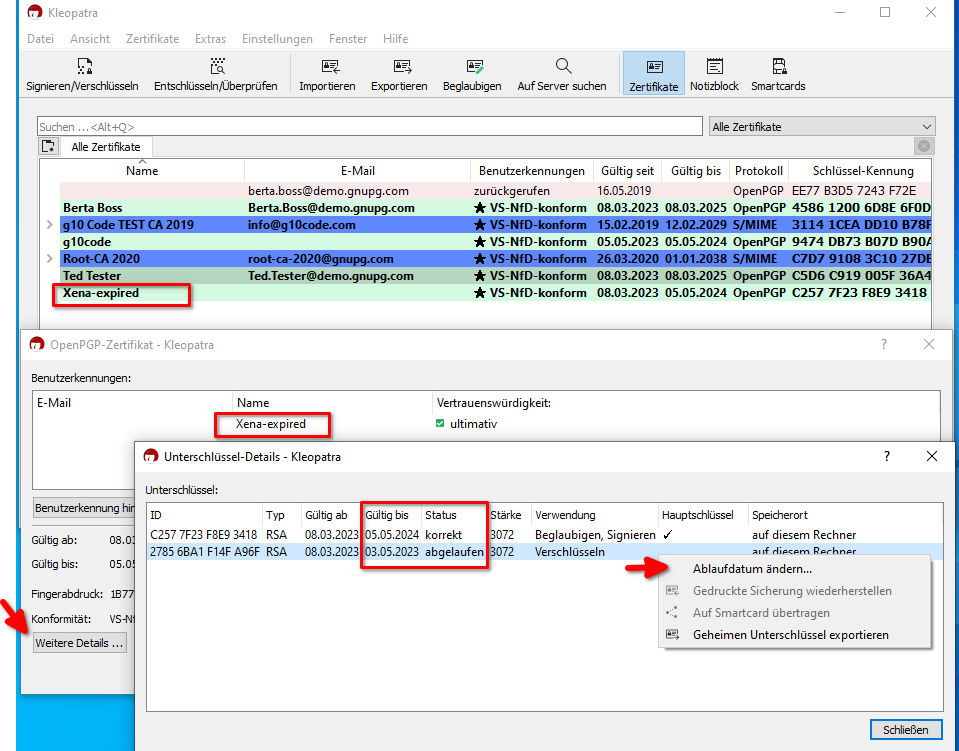
1. Open the certificate list in Kleopatra and double-click your certificate.
2. Click More Details in the bottom left of the new window.
3. The detail view shows two rows: the first (signing subkey) shows correct, the second (encryption subkey) shows expired.
4. Right-click the second row and select Change expiry date.
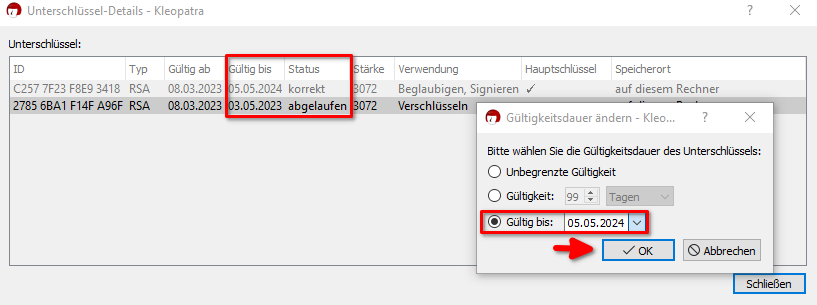
5. Enter the same expiry date as the first row and confirm with OK.
6. Both subkeys now share the same expiry date and the certificate is fully usable again.
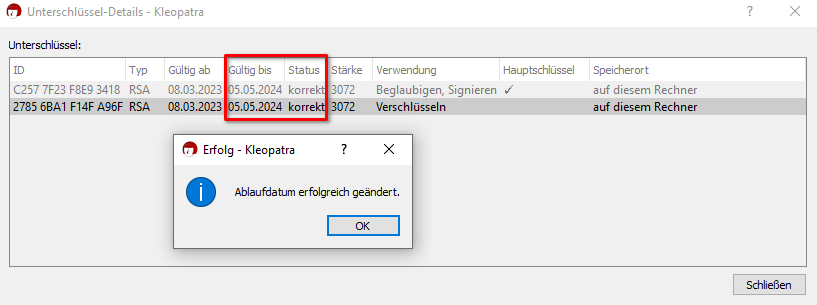
7. Test the result: encrypt a file or message to yourself.
8. Export the updated certificate and share it with your contacts, so they can also see and use the new validity.
Why is my certificate no longer offered for encryption after renewal?
The certificate appears valid in the certificate list, but it no longer shows up in the file encryption dialog or in Outlook.
This happens when you renewed an expired certificate with Kleopatra from GnuPG VS-Desktop® up to and including version 3.1.26 and the renewal was only partial.
Why can’t I select a recipient for file encryption?
If you can't select any recipients in the file encryption dialog, it's usually due to a setting in Kleopatra. The recipient field appears grayed out because Kleopatra is set to use symmetric encryption only.
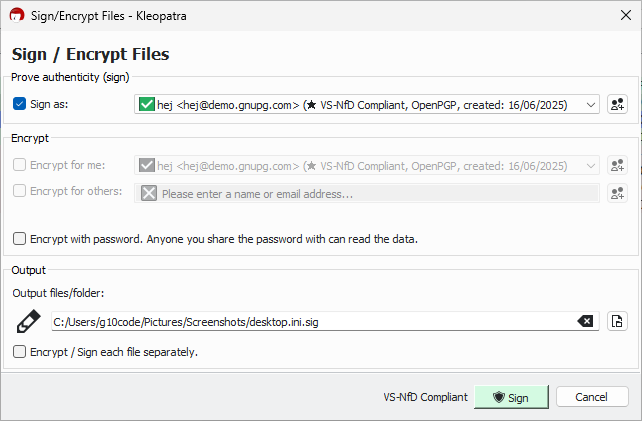
To fix this, open the settings and go to the Crypto Operations tab. Check if the option Use symmetric encryption only is enabled.
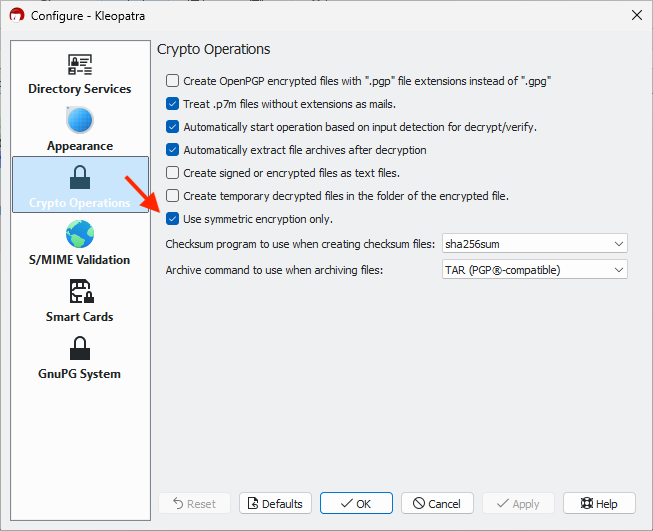
Uncheck the box to enable recipient selection again.
Password-Based Encryption
Why does decryption fail with "Bad passphrase"?
You entered an incorrect password or accidentally copied an extra character like a space. Please double-check your input and make sure capitalization matches exactly.
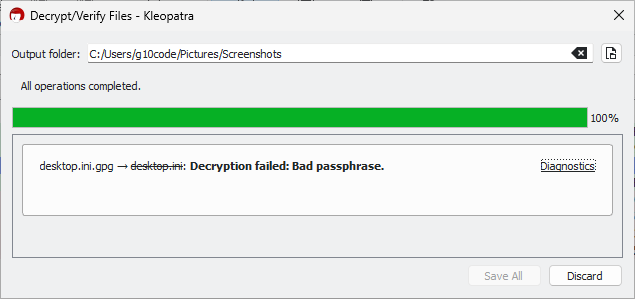
If the password was generated by GnuPG VS-Desktop®,
it consists of exactly 30 characters from the following set:
13456789abcdefghijkmnopqrstuwxyz (For readability, the characters 0,
2, l, and v are not included.)
Important: These passwords may be shown with spaces to improve readability. Do not include the spaces when entering the passphrase.
GpgOL Questions
What does "Not all attachments can be shown" mean?
When opening encrypted emails, GpgOL sometimes shows Not all attachments can be displayed. The cause lies in how the add-in works internally: when decrypting, GpgOL keeps the original encrypted message and attaches the decrypted version alongside it. This temporarily doubles the size of the email.
If the email exceeds the size limit configured on the Exchange server, GpgOL displays only as many attachments as technically possible.
The encryption method also matters:
- S/MIME messages are not compressed and reach the limit faster.
- OpenPGP messages use compression and are usually smaller.
Workaround: Save the email locally via drag and drop and open it in Explorer. This lets you decrypt the message fully outside of Outlook.
If this happens regularly, an administrator can raise the size limit on the Exchange server.
GpgOL/Web Questions
What is the difference between GpgOL and GpgOL/Web?
The new Outlook is built on the same web technologies as Outlook on the Web (OWA) and is technically a completely different application from classic Outlook. Classic Outlook uses COM add-ins—GpgOL is one of them. The new Outlook no longer supports COM add-ins; GpgOL/Web takes over there.
GpgOL/Web uses a different architecture: a local client handles all cryptographic operations, and a separate service manages the connection to Outlook. Neither private keys nor plaintext data leave the local system.
Note: GpgOL/Web is currently available for GnuPG Desktop®. It will be included in GnuPG VS-Desktop® with version 4—a parallel installation with the current version is not possible.
When trying to register the add-in in Outlook, the Outlook Extension Manager does not open
The Outlook Extension Manager button opens the Extension Manager in your default browser. Sign in with your Outlook account if prompted. The page may take a moment to load.
If the manager does not open, try the following:
- Close the browser window and reopen it.
- Try a different browser, e.g. Firefox.
- Restart your computer.
You can also open the Extension Manager directly using one of these links:
I have installed the manifest file in Outlook, but see no GnuPG icon
First, make sure GpgOL/Web is running—the status bar icon shows the current state. Click it to see a connection overview. Both the proxy and the connection should show as active.
Under Settings / Troubleshooting, a button lets you check the SSL certificate for problems. If a warning appears, generate a new certificate under Settings / Proxy & SSL and restart Outlook or your browser.
Note: Always start GpgOL/Web before Outlook. If Outlook is already open, reload the browser window or restart Outlook.
Outlook add-ins load gradually over the network—it may take a moment for the icon to appear. Depending on your screen width and settings, it may not be visible in the ribbon by default. In that case, click More Apps. Right-clicking the icon lets you pin it to the main ribbon.
Some browsers ask whether Outlook may access your local network and/or load local Apps. Allow this—the GpgOL/Web add-in loads from your local computer. If you previously denied access, check your browser settings under Site permissions. The relevant settings can also be accessed via chrome://settings/content/loopbackNetwork (Chrome) or edge://settings/privacy/sitePermissions/allPermissions/loopbackNetwork (Edge).
If you use an organization or school account, your administrator may need to grant consent for the add-in first.
The GnuPG icon is visible but grayed out and inactive
The add-in only activates when an email is open. Outlook does not currently give add-ins a way to stay active otherwise—we hope to improve this in a future version.
The GnuPG sidebar closes every time I select a different email
Click the pin icon at the top of the sidebar to keep it open.